
Before you start
You'll need your current password. If you don't have it or don't recall it, sign out and click Forgot? on the login page under the password input field — see Signing in and signing out.
Ⓘ This is the password for your client area login, not for your server — for the server password, see Changing a service password. The two are unrelated, changing one won't affect the other.
How to change your password
Open the menu under your name at portal.advancedhosting.com → Change Password
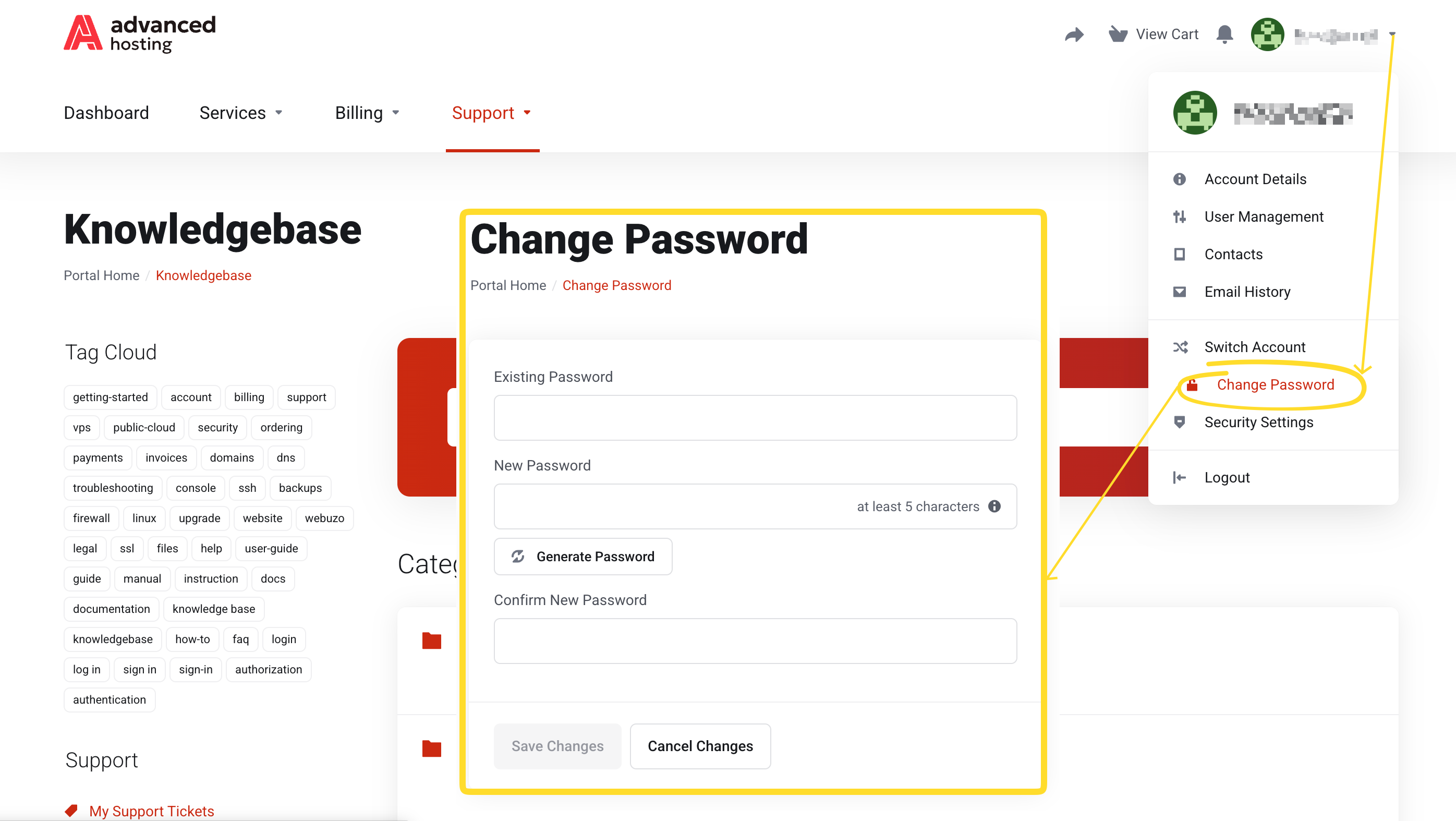
Fill in your current password, then the new one twice, and click Save Changes. The password strength meter under the password input field has to be satisfied before the form is accepted.
How to enable the 2FA
To turn on two-factor authentication, from the same dropdown menu, select Security Settings (portal.advancedhosting.com/index.php?rp=/user/security), enable it, and follow the prompts. From then on, signing in will require a one-time code as well as your password.
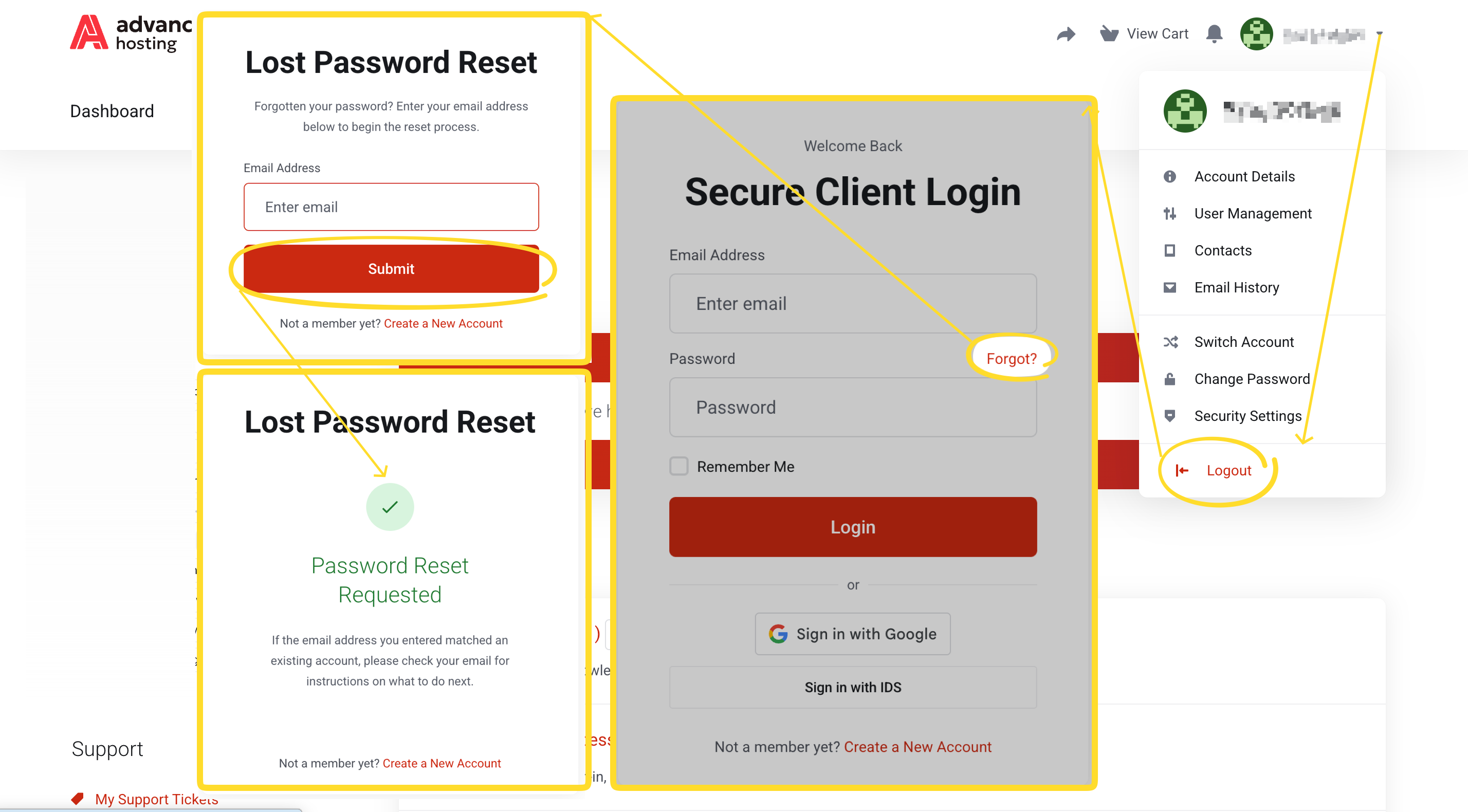
Follow the email instructions. Check the spam folder if the letter misses your inbox.
If all went well
You'll see a message confirming your password change.
How to choose a reliable password
-
Long beats complicated: a passphrase of four unrelated words is stronger than
P@ssw0rd!. -
Never reuse the password from another site or service. If that one is breached, your hosting will be affected too.
-
Anyone who needs client area access should get their own credentials, not yours — see Giving other people access.
Troubleshooting
-
It says my current password is incorrect
Check Caps Lock, and make sure the browser has not auto-filled an old saved password over what you typed.
-
The Save button does nothing
The two new-password fields do not match, or the new password is below the minimum strength.
-
I lost my two-factor device
Use the backup code you were given when you enabled the device. Without it, open a ticket from another signed-in session — see Support tickets.
Frequently asked questions
-
Does changing my client area password change my server password?
No. They are separate. To change a server's password, see Changing a service password.
-
Is two-factor authentication required?
It is optional yet strongly recommended: it is the single most effective protection for an account that can order services and see invoices.