
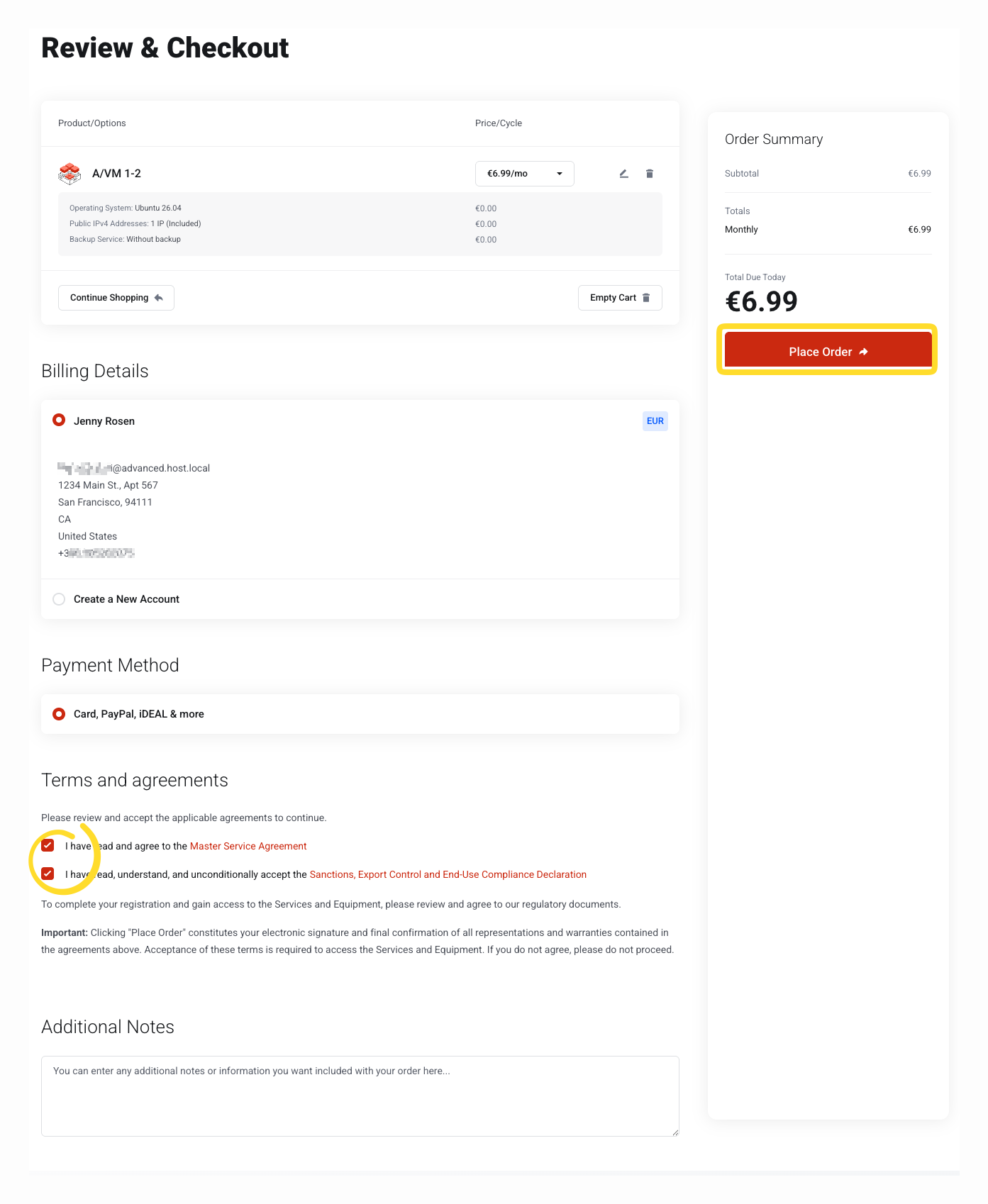
Once you have configured your order, Review & Checkout at portal.advancedhosting.com/cart.php?a=checkout, to place an order and pay.
Before you start
Ⓘ Which methods will be available to you depends on the currency of the invoice, the country/bank of your card, and your device.
-
Your billing details should be correct — they go on the invoice. See Account details and contacts.
-
If you intend to pay from a bank account, have your banking app or login at hand.
How to pay
-
Decide about your credit balance. If your account holds credit, we offer to spend it on this order, and that option is selected by default. Leave it selected to pay from credit — when the credit covers the whole amount, the invoice is settled immediately and no payment step follows. Choose Do not apply any credit to keep the balance and pay this order separately.
-
Place the order. Tick the terms of service if asked, then press Place Order. This step creates the order and its invoice.
-
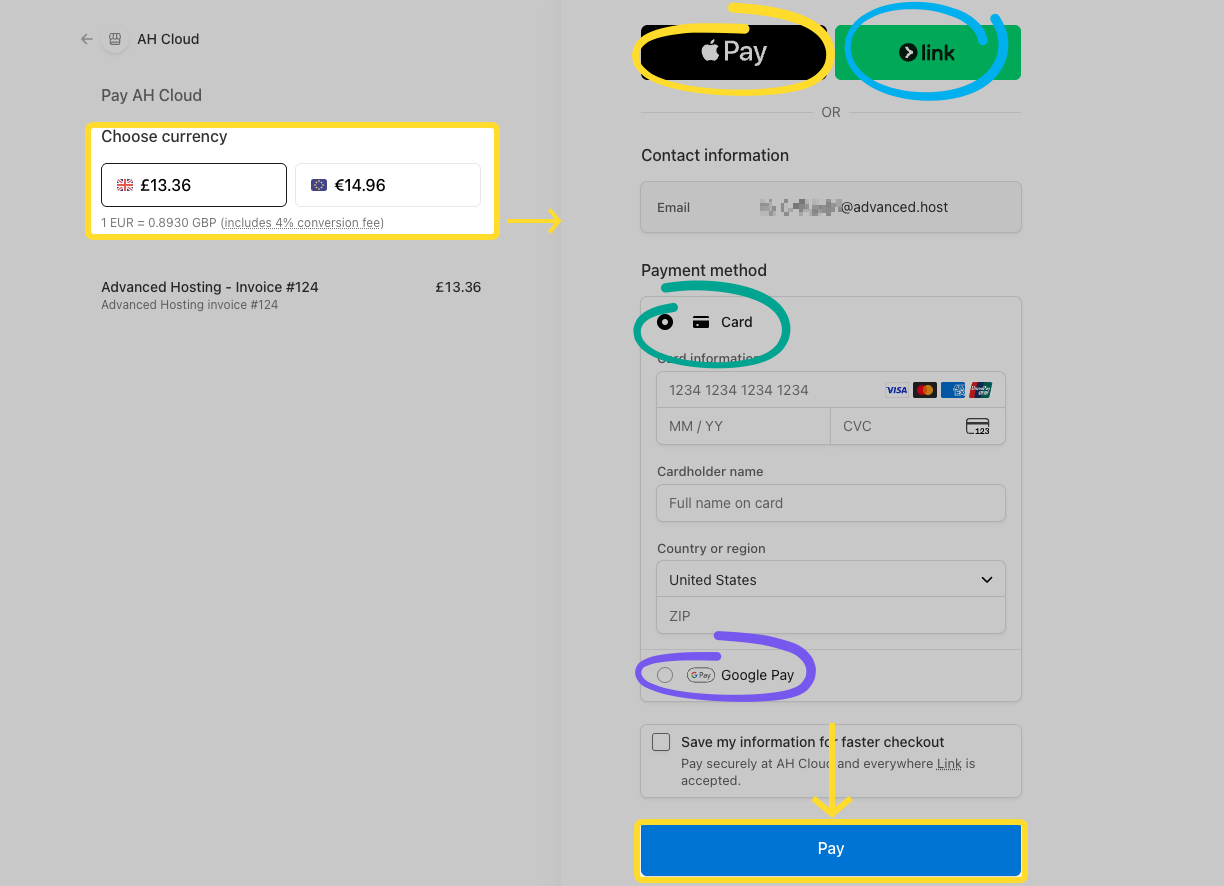
Choose a payment method. Checkout offers one payment route, shown as Card, PayPal, iDEAL & more; the payment page it opens lists what's available for this invoice. Which methods appear depends on the currency of the invoice, the country/bank of your card, and your device — your list may differ from a colleague's. In broad terms, you will see some of the latter:
-
a card — enter the number and confirm;
-
a wallet such as Apple Pay, Google Pay, Link or PayPal — confirm with the device or account you already use;
-
a bank redirect such as iDEAL, Bancontact, BLIK or TWINT — you approve the payment in your own bank;
-
a bank debit or transfer such as SEPA Direct Debit — you authorise it now, and it clears over the next few working days. Bank methods usually ask for the account holder's full name — the name on the bank account, not a company name. The full list is in Payment methods.
-
-
Confirm. The button reads Pay when the money moves immediately, and Continue when the method sends you elsewhere to approve it — a banking app, a wallet, or an instalment provider. Finish there and you are returned to the invoice.
Upon a successful order
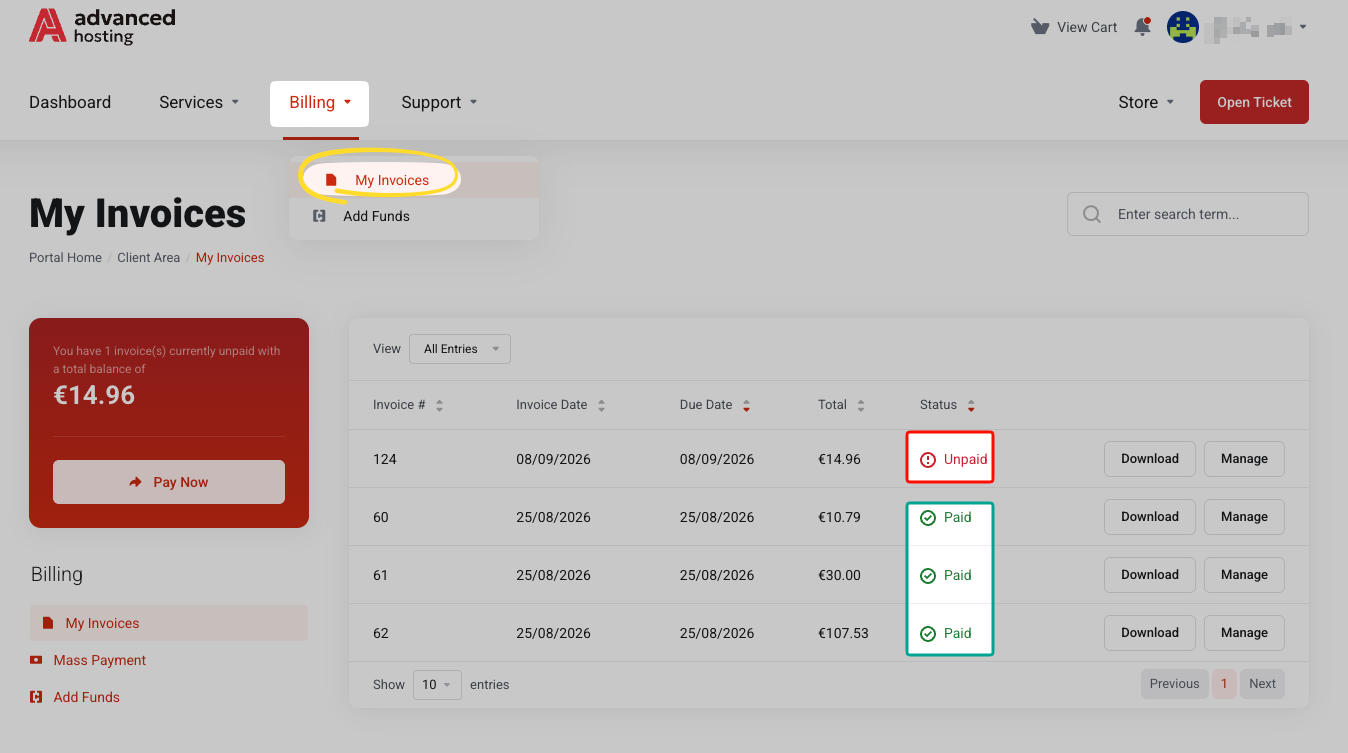
The invoice status reads Paid — immediately for a card, a wallet or a bank redirect, and after a few working days for a debit or a transfer.
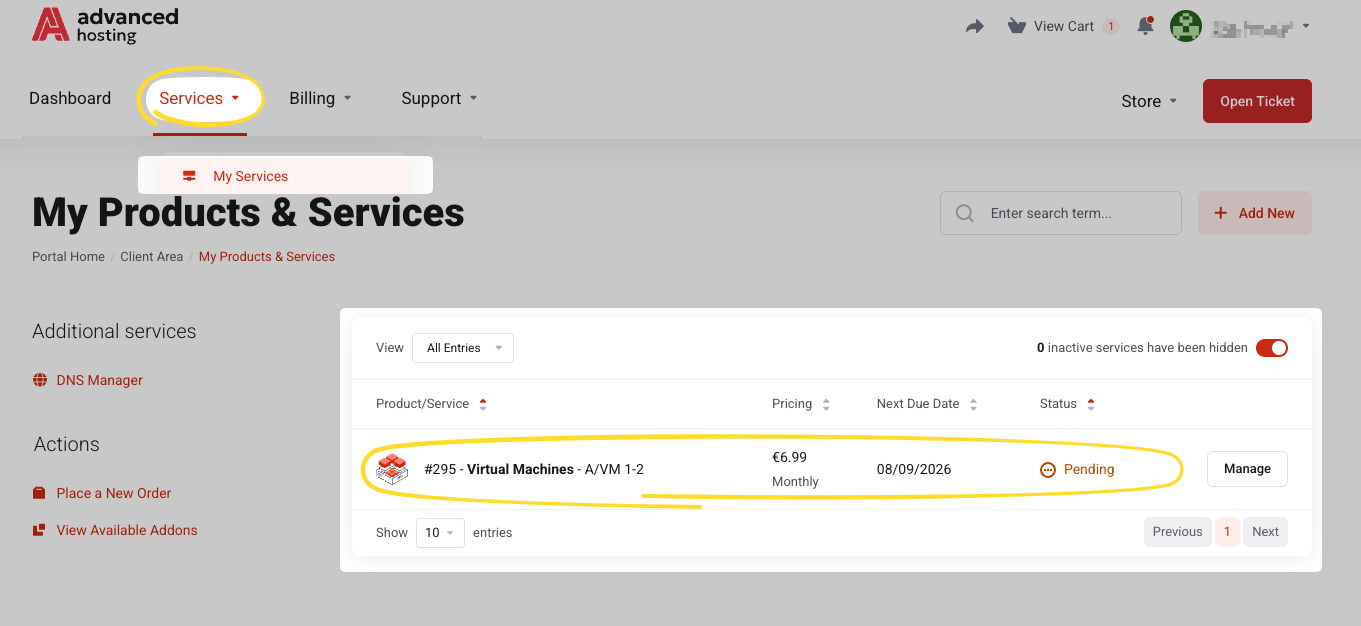
The service appears under Services → My Services, first as Pending and then as Active once it has been built. A virtual machine usually takes a few minutes from the moment the invoice is marked Paid.
Troubleshooting
-
I am still on the payment page, and nothing happened
The approval finished, but the browser was not handed back. Do not pay again. Open My Invoices and look at the invoice: if it says Paid, the payment went through and the service is on its way.
-
The invoice is still Unpaid a few minutes later
Some methods confirm asynchronously, and bank debits and transfers take days by design. Give an instant method a few more minutes, then open a ticket quoting the invoice number.
-
The method I wanted was not offered
The list is limited to what is available for your currency, country, and device. Ask us in a support ticket — some methods can be enabled on request.
-
Total Due Today was zero
Your credit balance covered it — step 1, working as intended.
-
The service has been Pending for a long time
Provisioning is queued behind the payment. If it has not gone Active within an hour of the invoice being marked Paid, open a ticket with the invoice number and the service name.
Frequently asked questions
-
Which payment methods can I use at Advanced Hosting?
Whatever the payment page offers for your invoice — cards, wallets, bank redirects, bank debits, transfers, and, in some countries, installments or vouchers. See Payment methods.
-
Is it safe to enter my card details?
Card and bank details are entered on our payment provider's own page and are never stored on our servers.
-
How soon is my server ready after paying?
A virtual machine is usually built within a few minutes of the invoice being marked Paid. Payment methods that clear over several days delay that start.
-
Can I pay part of an invoice now and part later?
No. An invoice is paid in full. If you want to spread the cost, look for a buy-now-pay-later method on the payment page or prepay it into your credit balance.